Gestures
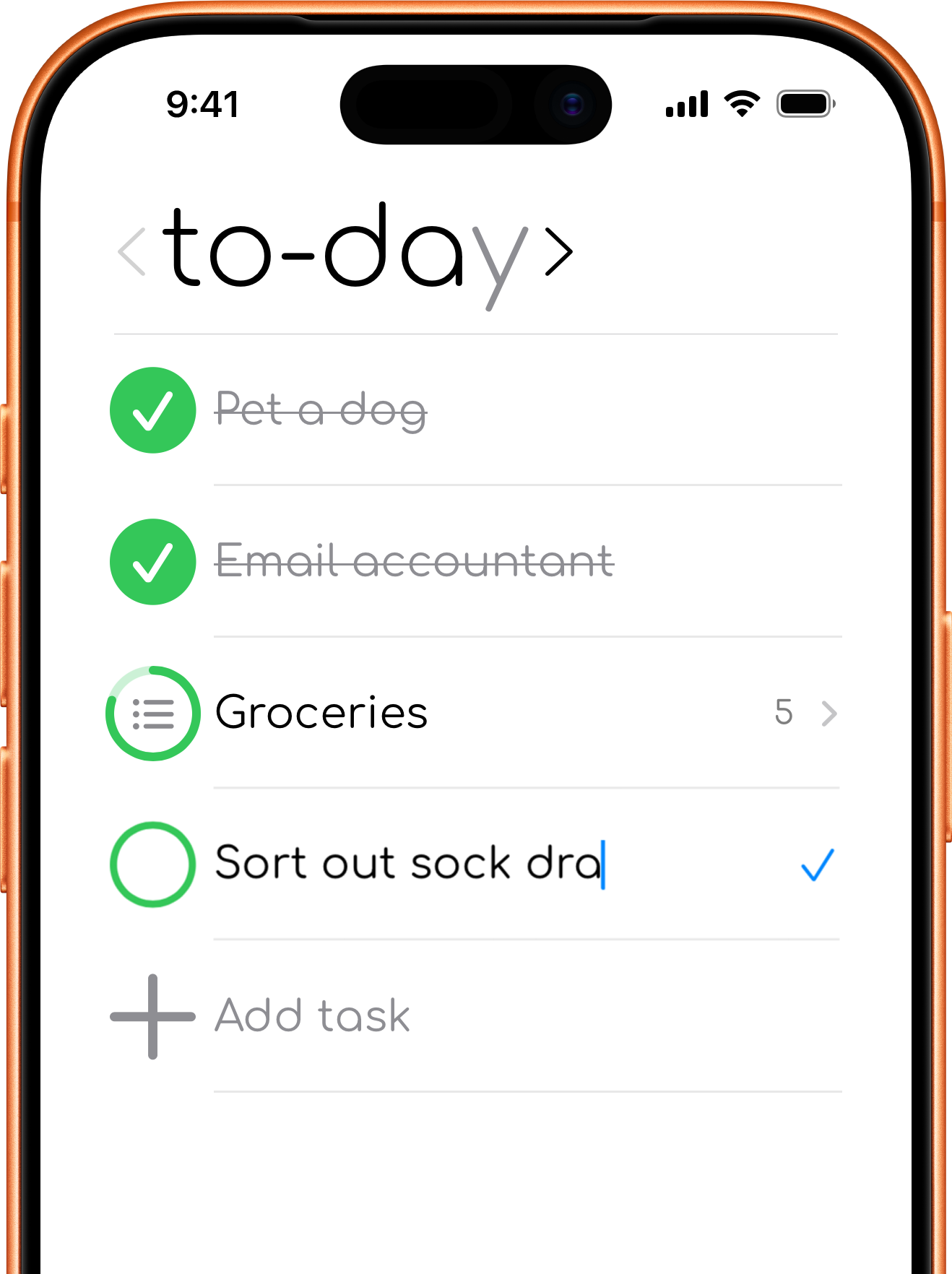
Tap to edit
Tap a task title to edit it. Finish editing to save the updated title.
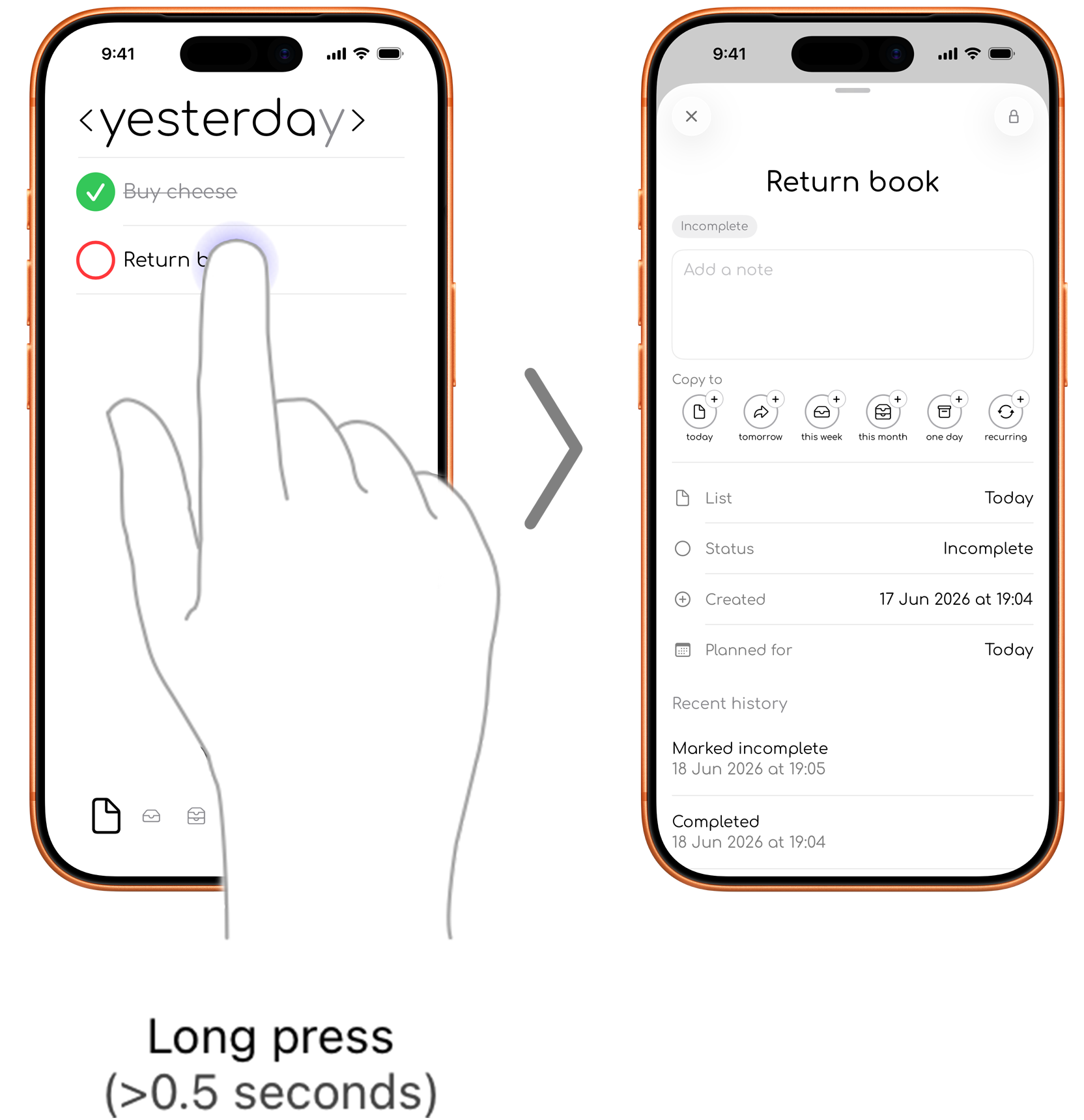
Long press for Task Info
Press and hold a task to open the Task Info sheet. From there you can review details, add notes, rename the task, change its planning tab or planned date, and access other available actions.
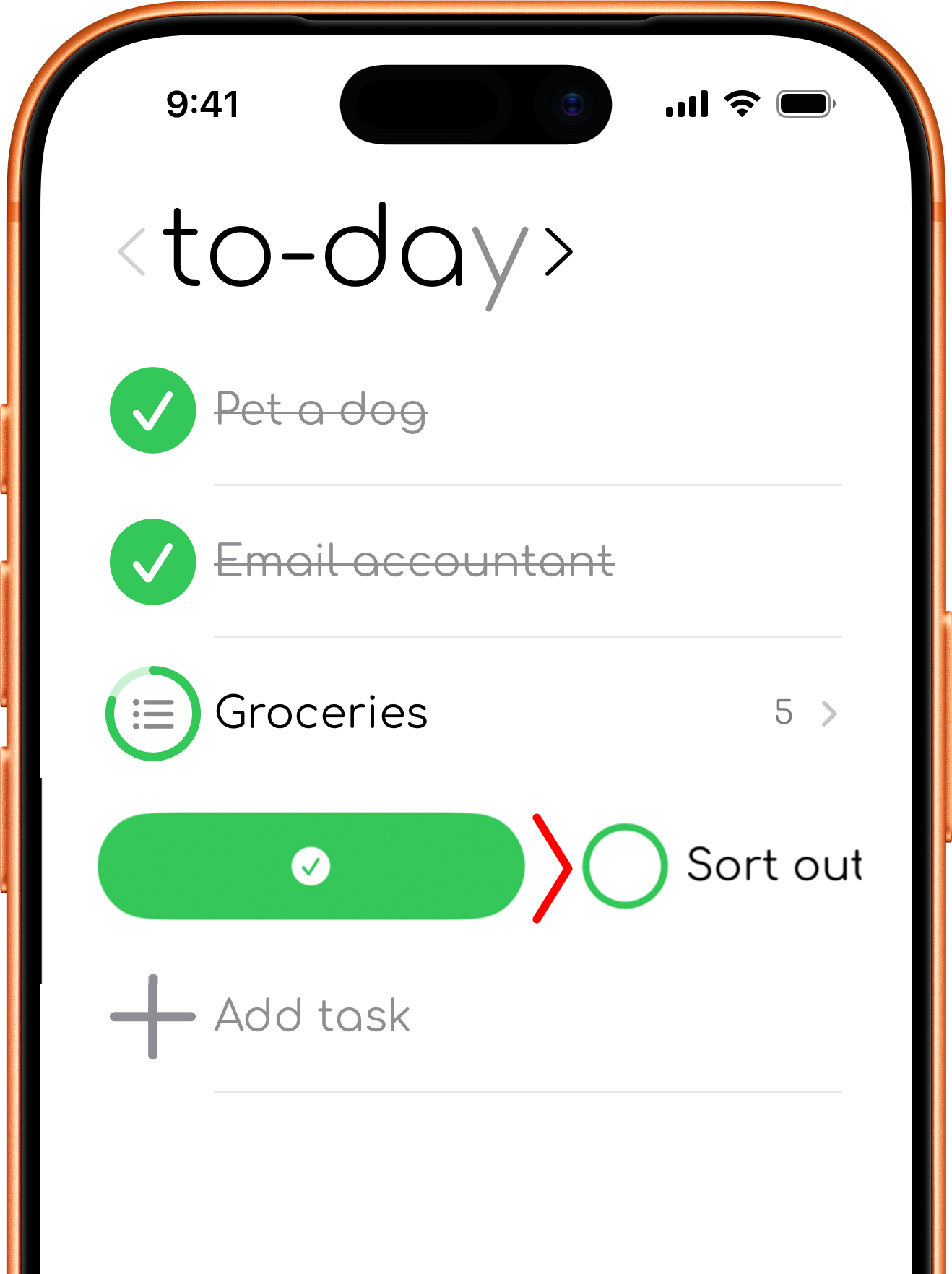
Swipe right
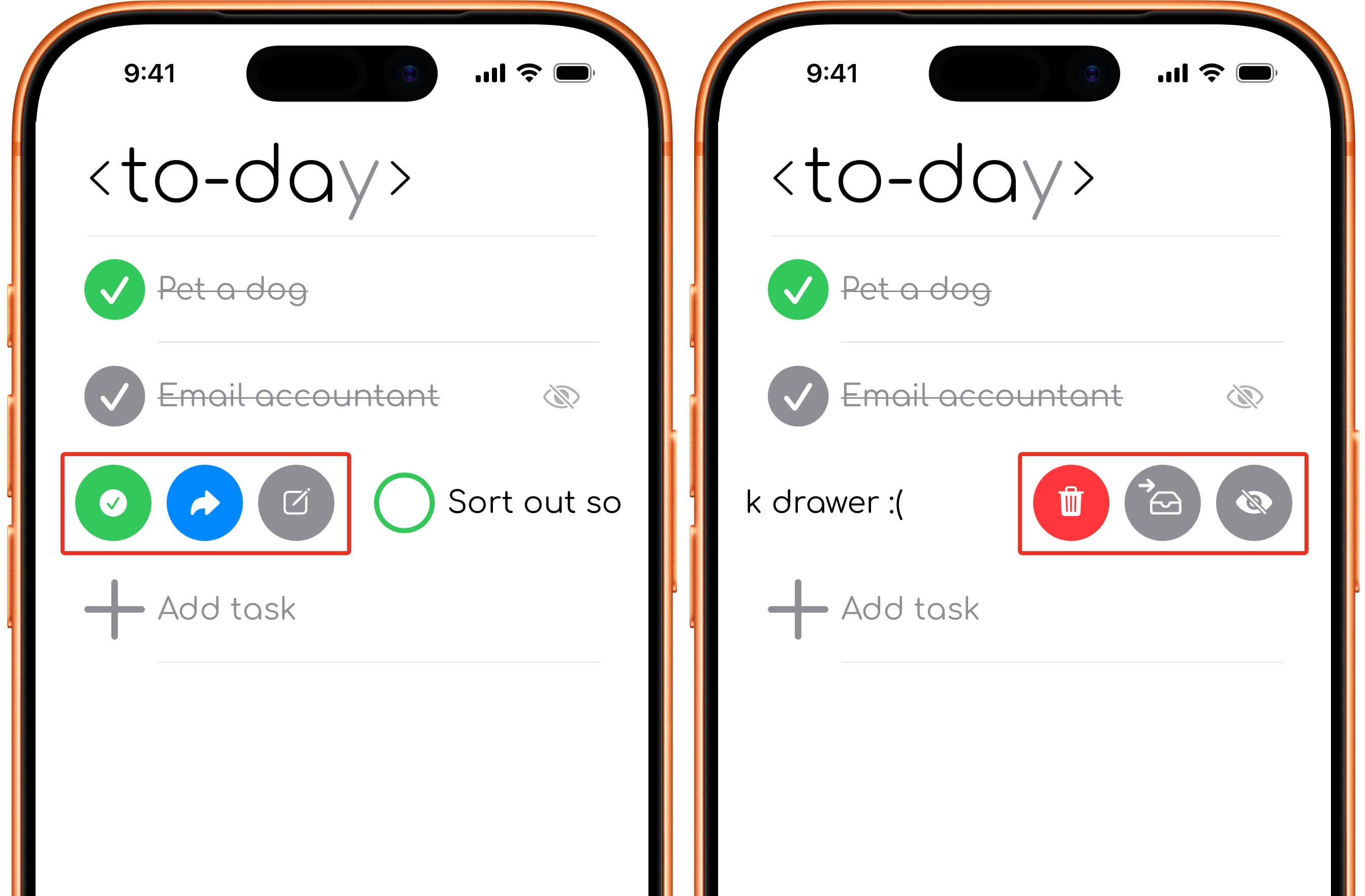
Swipe a task to the right to reveal actions such as complete or mark incomplete. The available shortcuts depend on the task, tab, and view you are using.
Swipe left
Swipe a task to the left to reveal actions such as archive, move to a later timeframe, or delete.
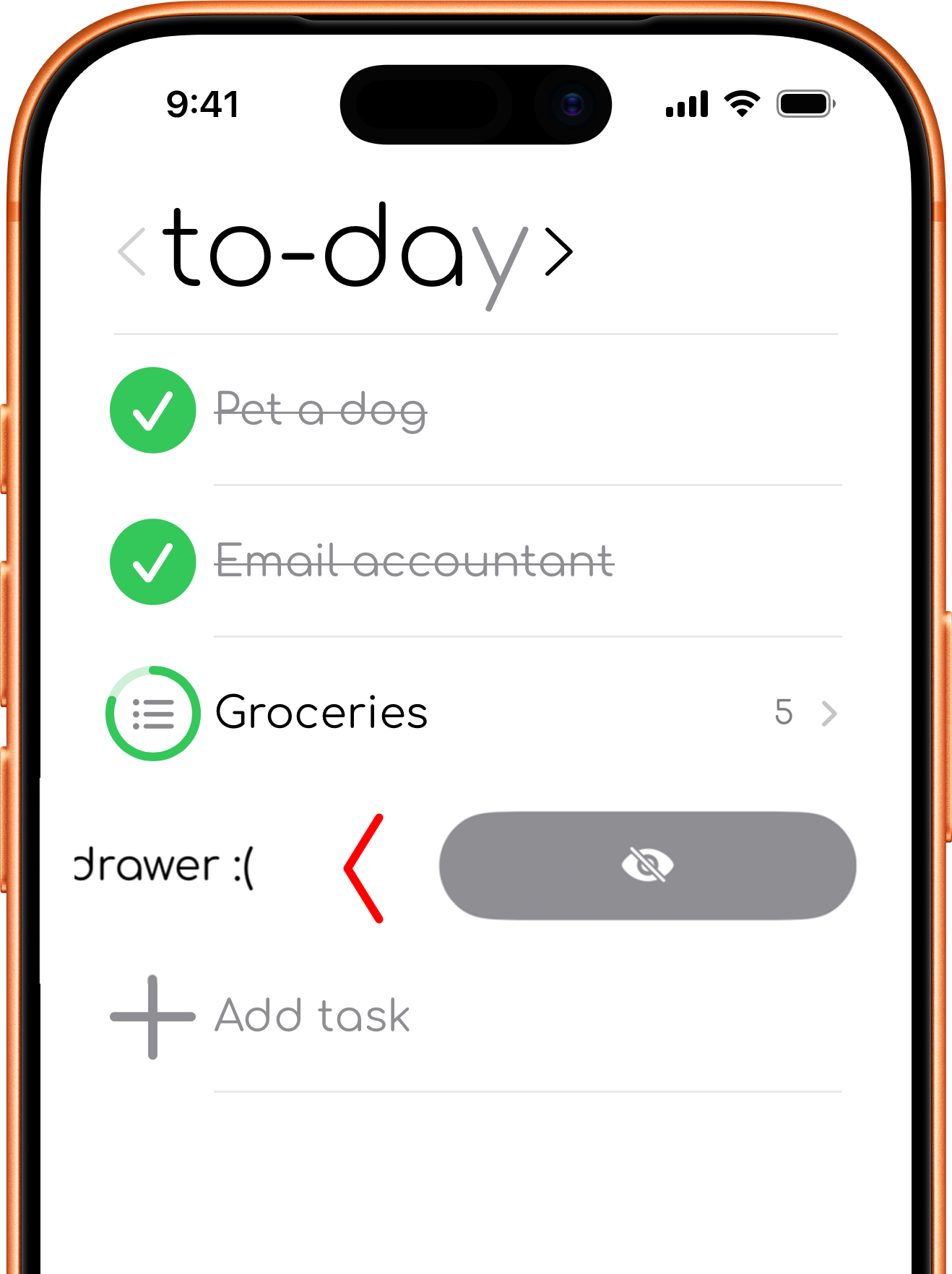
Half-swipe actions
A partial swipe reveals the available shortcuts without immediately performing a full-swipe action. This is useful when you want to choose a specific move or information action.
Because actions change by tab and view, check the labels before selecting one.