App Terminology
App structure
To-day is organised like this:
App
→ Tab
  → View
    → Sheet
Tab
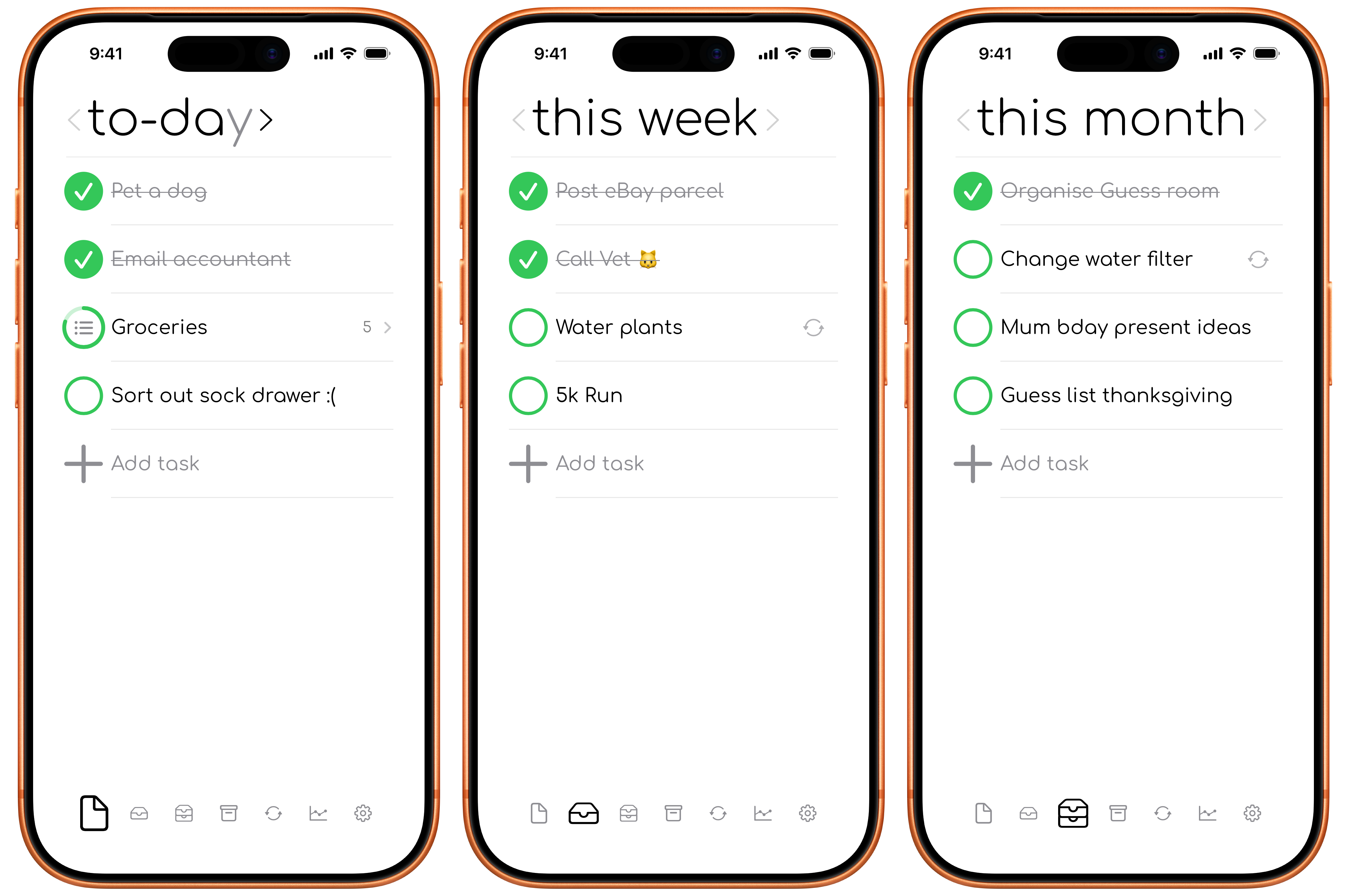
A main area of the app selected from the bottom menu, such as to-day, this week, this month, one day, recurring, or statistics.
View
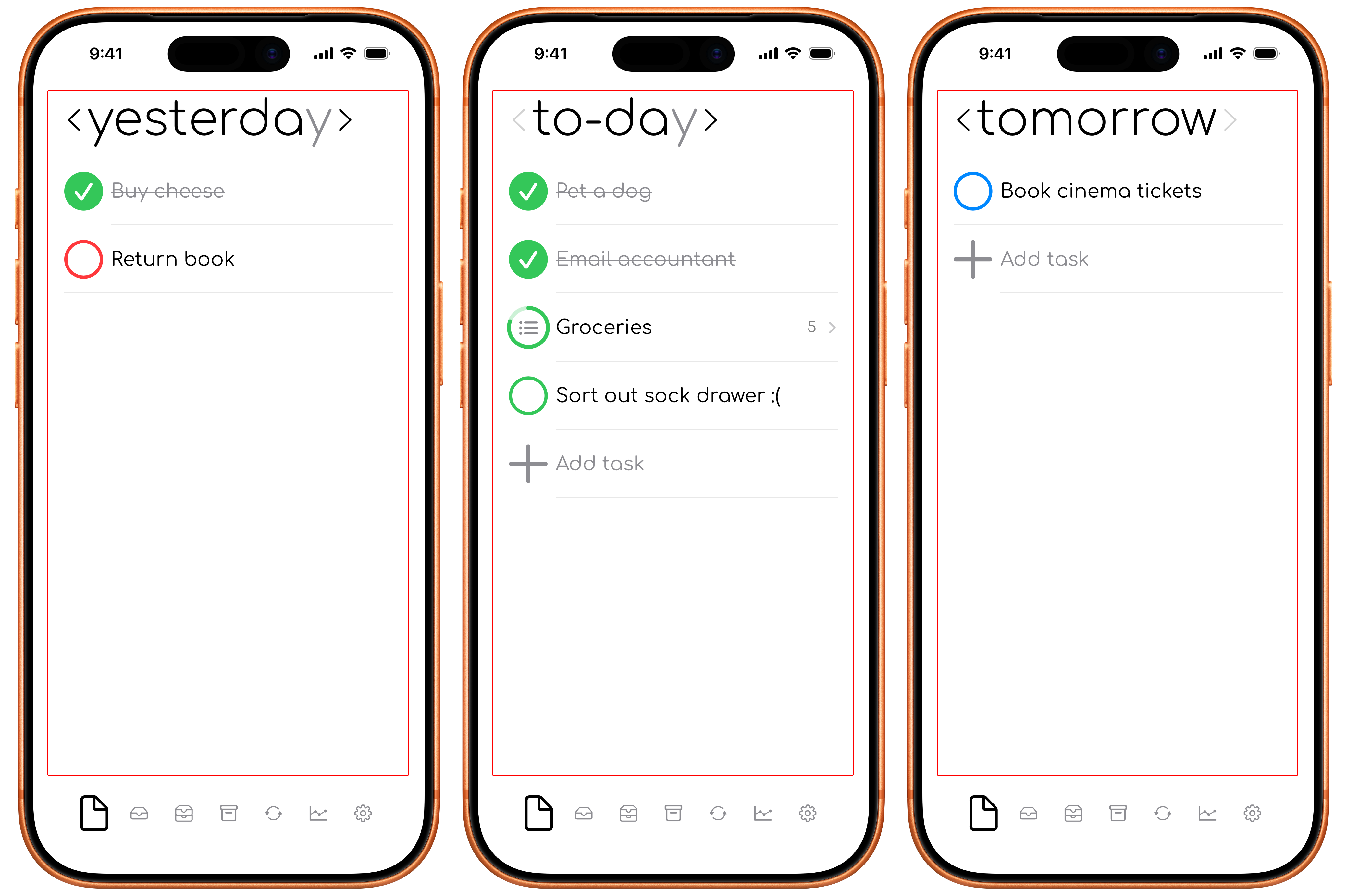
The current screen or time period shown inside a tab. Examples include Today, Yesterday, 2 days ago, Tomorrow, This Week, Last Week, This Month, and Last Month.
In the to-day tab, you can switch between to-day, yesterday, tomorrow, 2 days ago, and earlier-day views.
In the this week tab, you can switch between this week, last Week, and earlier-week views.
In the this month tab, you can switch between this month, last Month, and earlier-month views.
Sheet
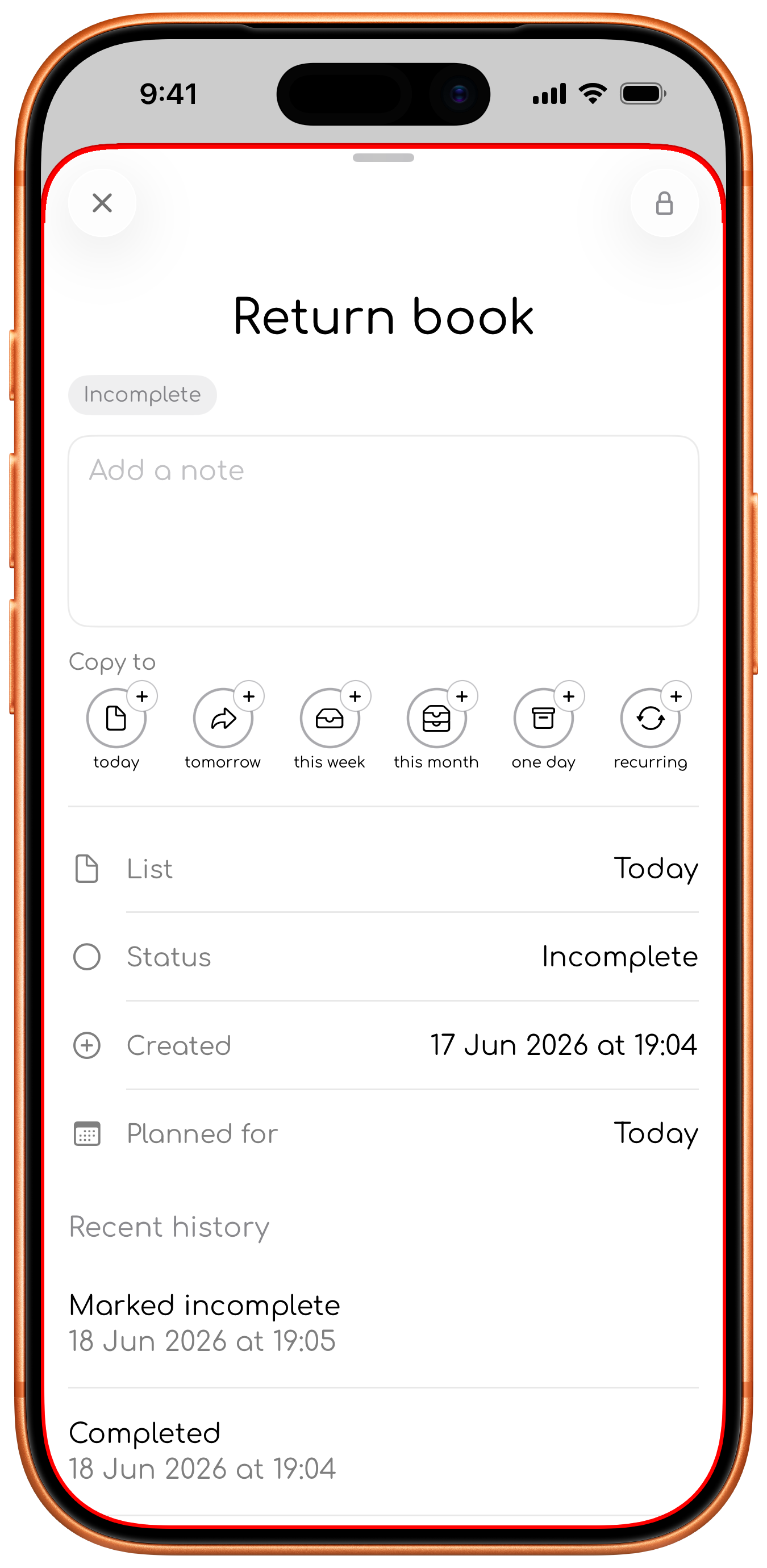
A temporary panel that opens over the current view. Settings, Tips, and Task Info are sheets.
Task
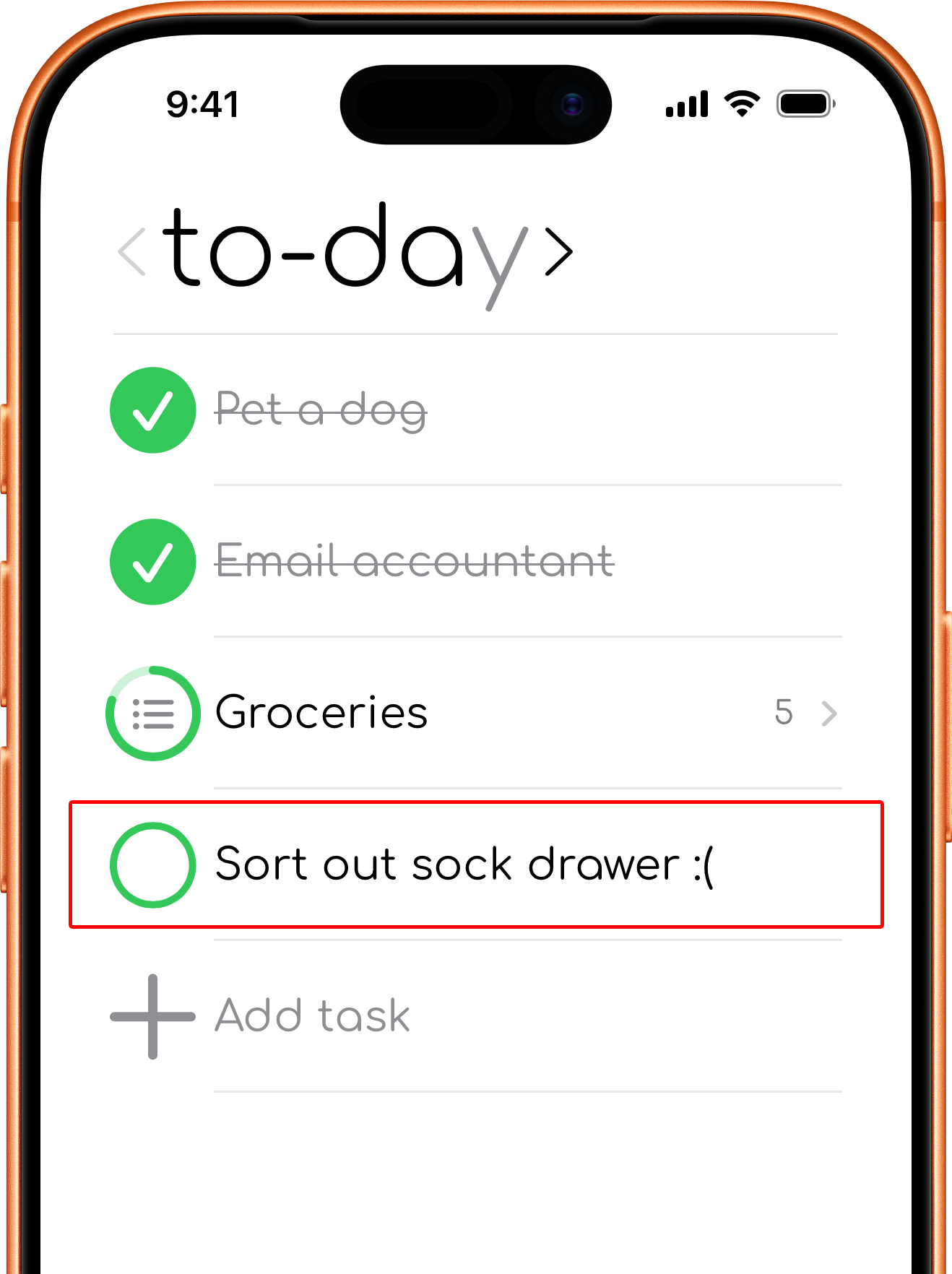
An item you want to remember or complete. A task can include a title and notes, and it belongs to a planning timeframe such as today, this week, this month, or one day.
Group
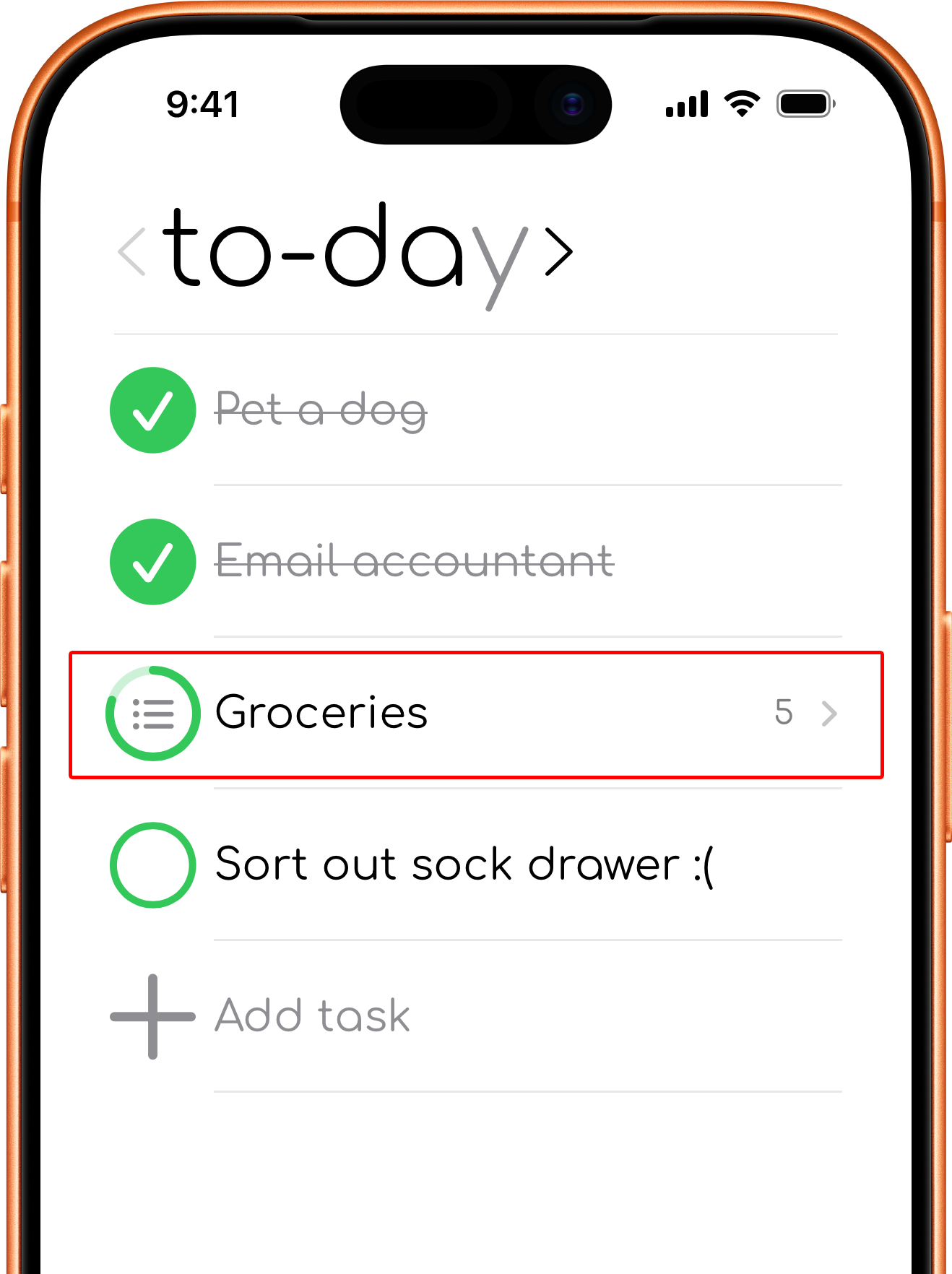
Two or more tasks with the same group tag at the start of their titles. To-day displays them together and shows their combined progress.
Timeframe
When you intend to do a task: today, this week, this month, or one day.
Recurring task
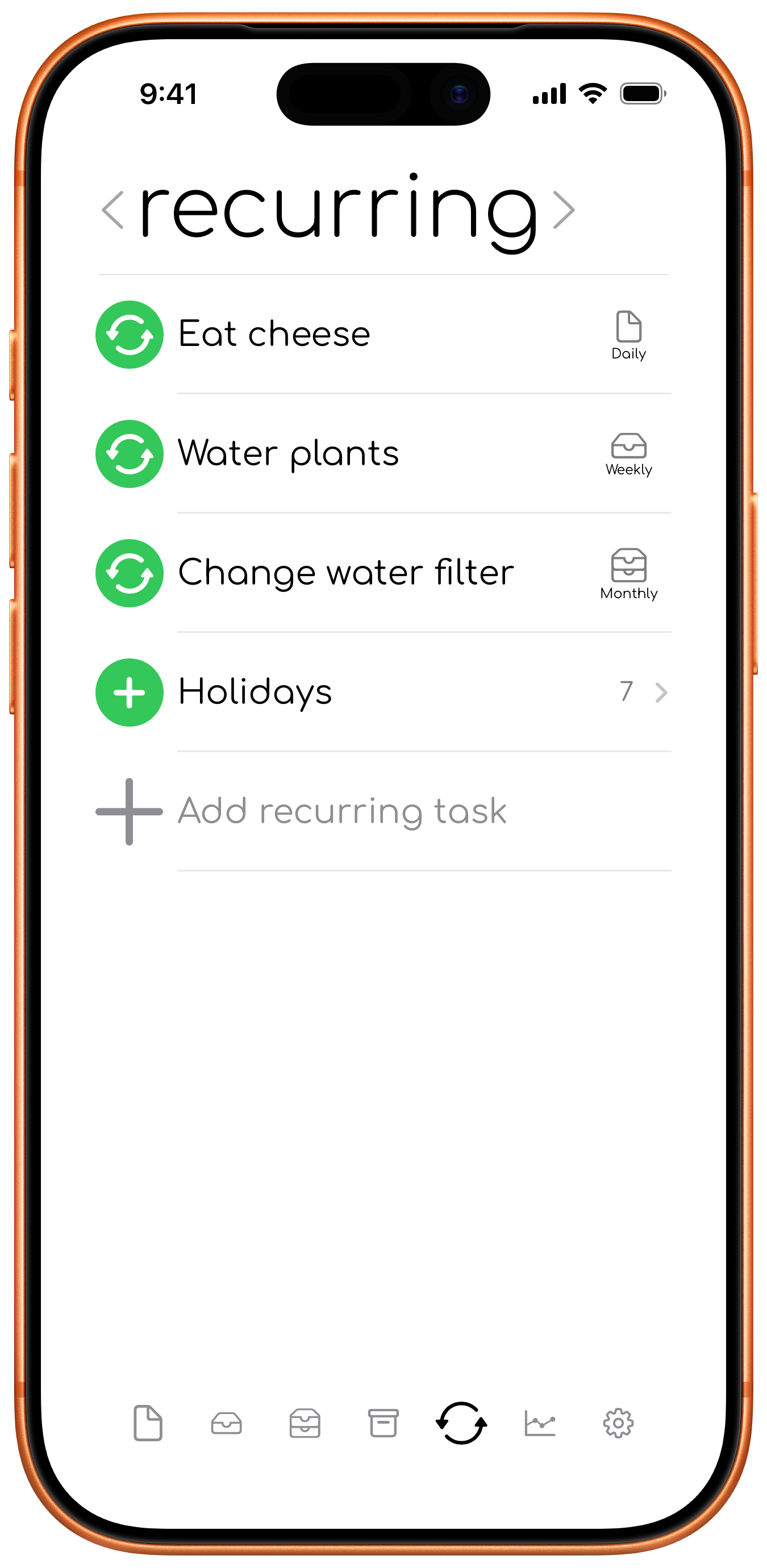
A task set to repeat daily, weekly, or monthly. It can be enabled, disabled, archived, or deleted.
Generated task
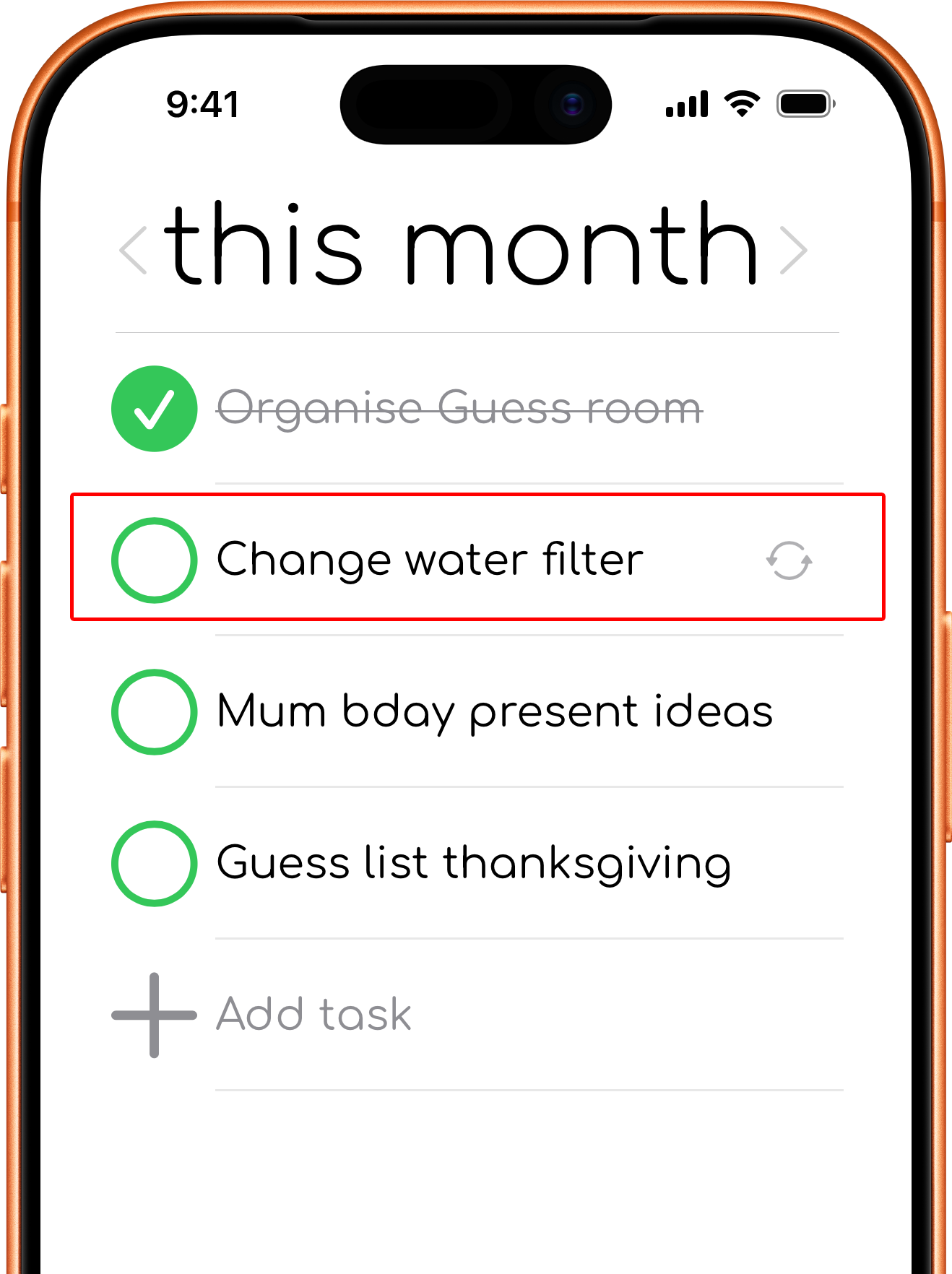
A normal task created automatically from an enabled recurring task. You can complete, move, or edit it without completing the recurring task itself.
Someday task
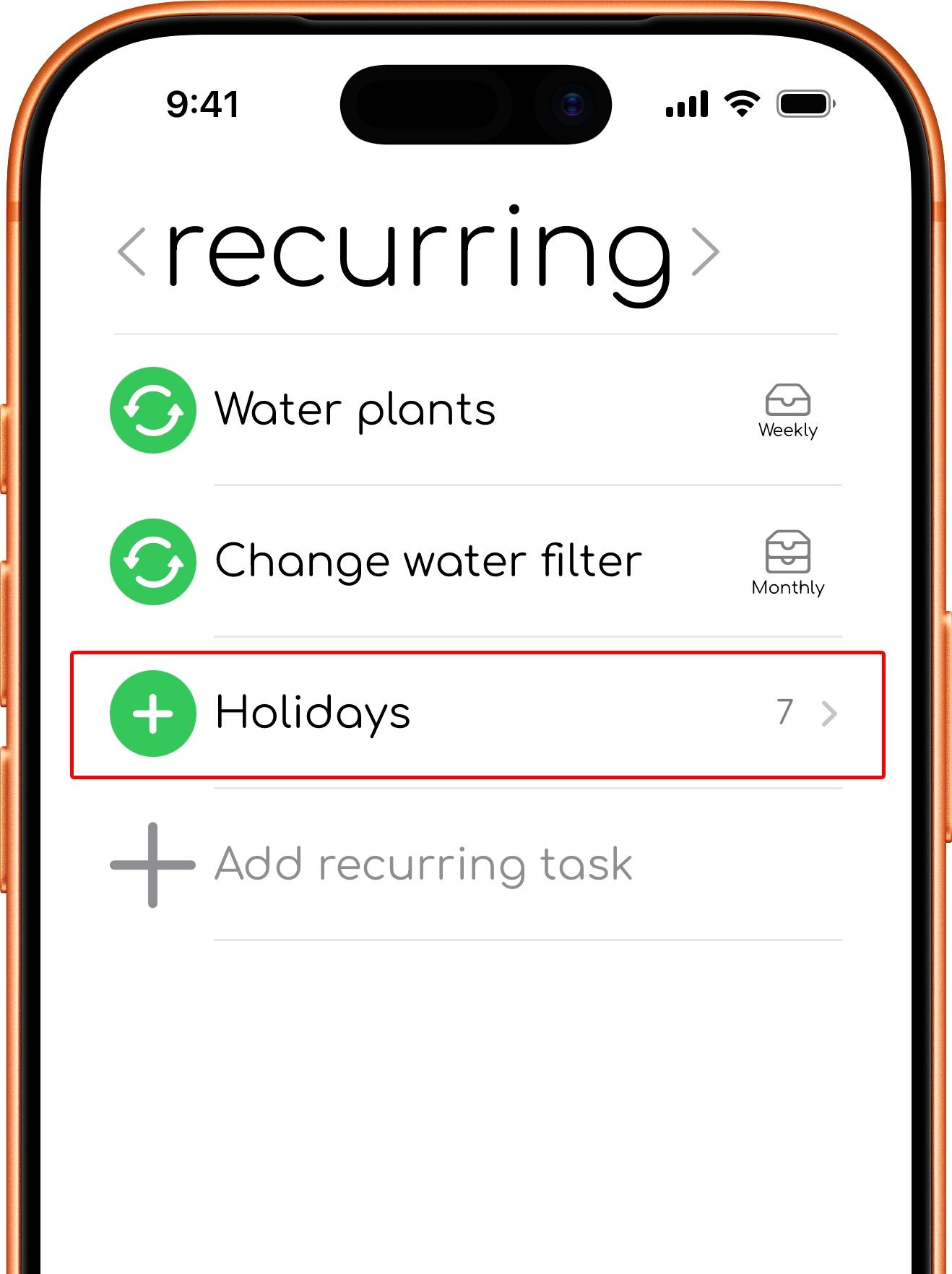
A reusable task in the recurring tab that does not create tasks automatically.
Use its add action whenever you want to place a copy in one of your planning tabs.
Complete
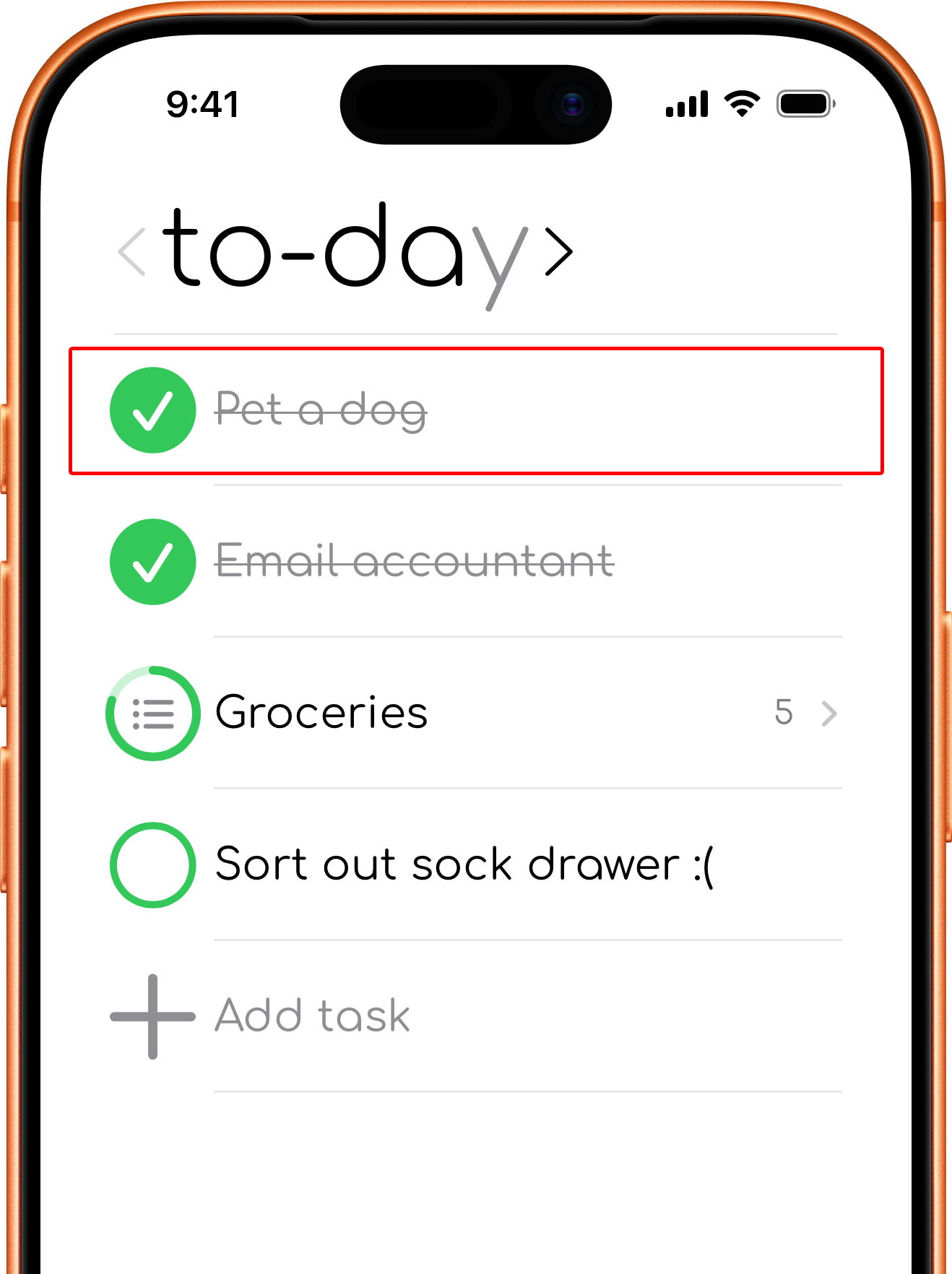
Marks a task as done. Completed tasks can be shown or hidden in Settings and can be marked incomplete again.
Archive
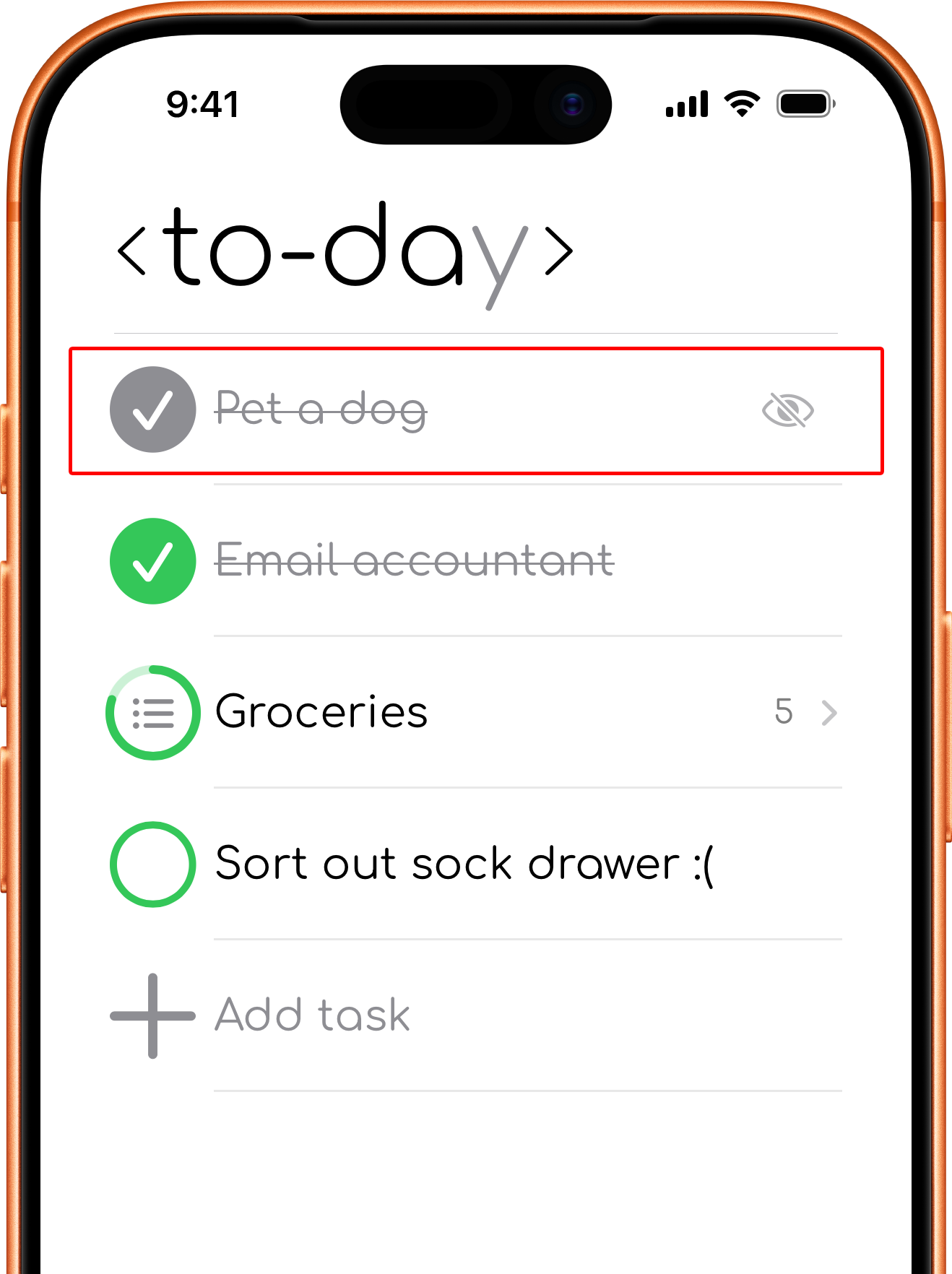
Hides a task while keeping it available for later restoration. Archived tasks can be viewed from Trash or shown in lists when the relevant setting is enabled.
Delete
Moves a task to Trash. Deleted tasks can be restored for 30 days before their identifying content is anonymised.
Move
Changes the task's timeframe or, within the to-day tab, moves it between the Today and Tomorrow views.
Statistics
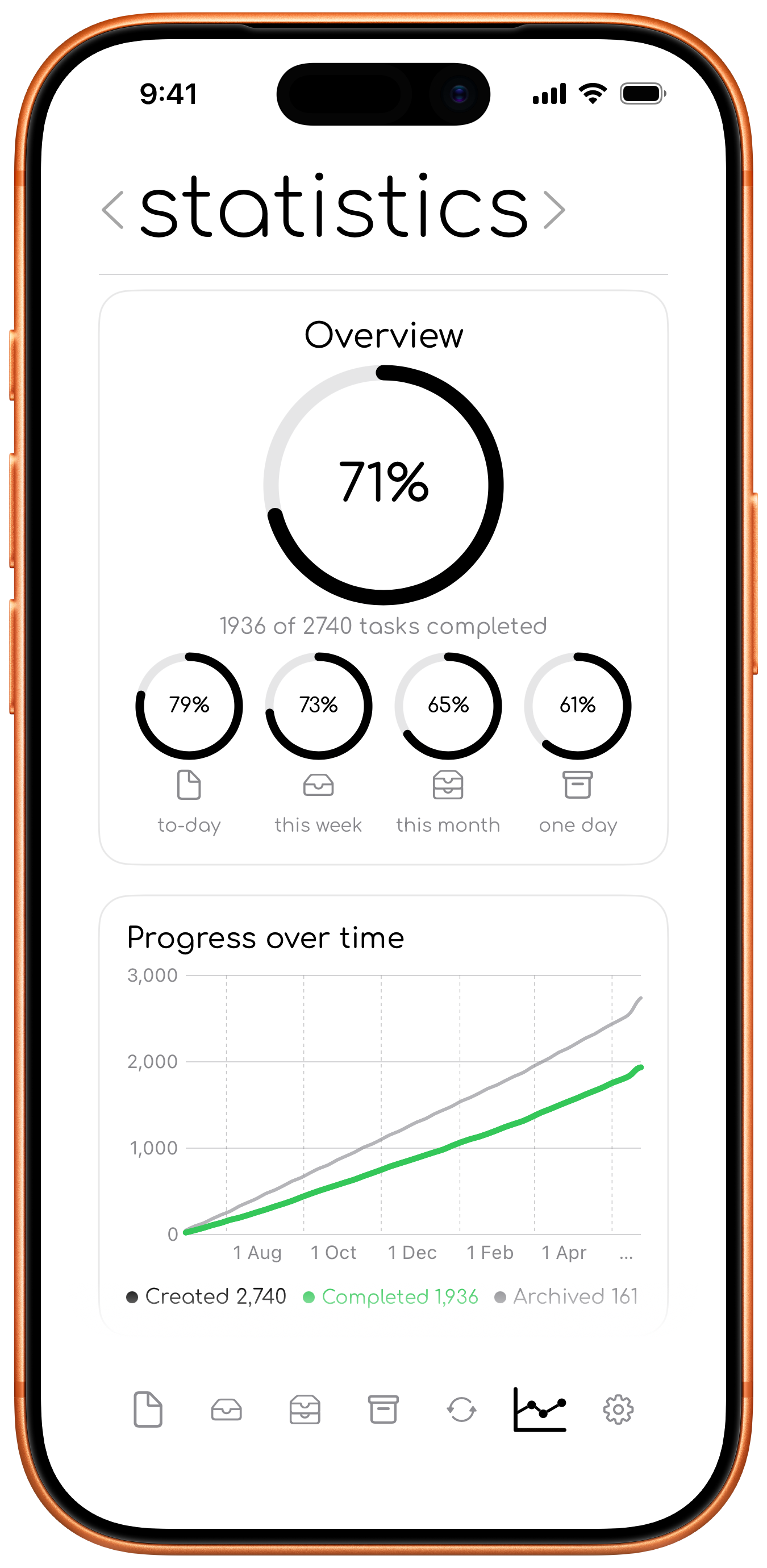
Summaries and graphs in the statistics tab, based on your task history. These include completion rates, completed tasks, timing, and recurring-task streaks.
Tips
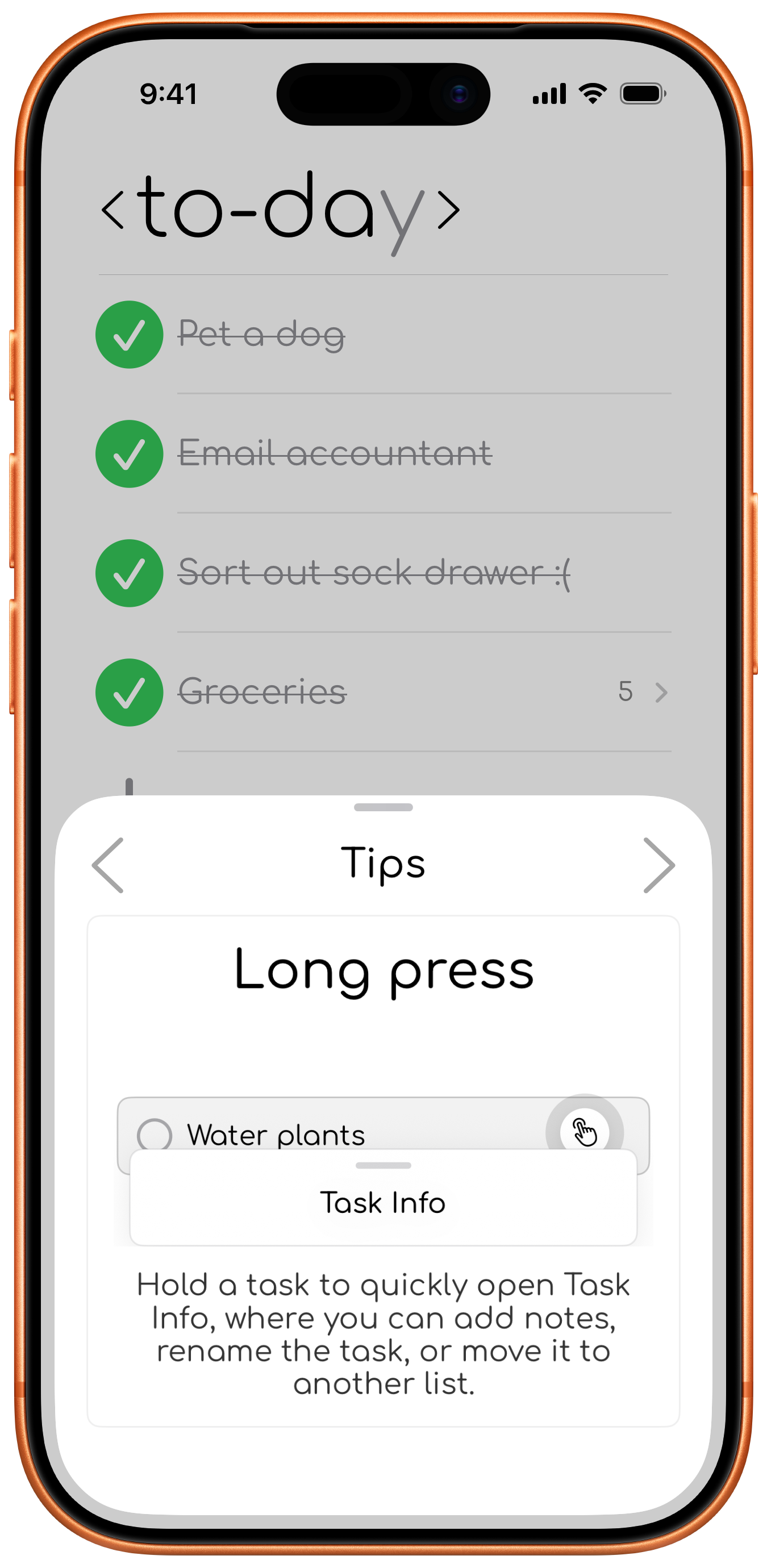
Short guides in the Tips sheet that demonstrate useful actions such as swipes, long presses, past views, groups, and Someday presets. Tips can be access using the lightbulb button that shows up now and then or later through the setting tab.